Integrations overview
Connect Monad to the tools your team already uses.
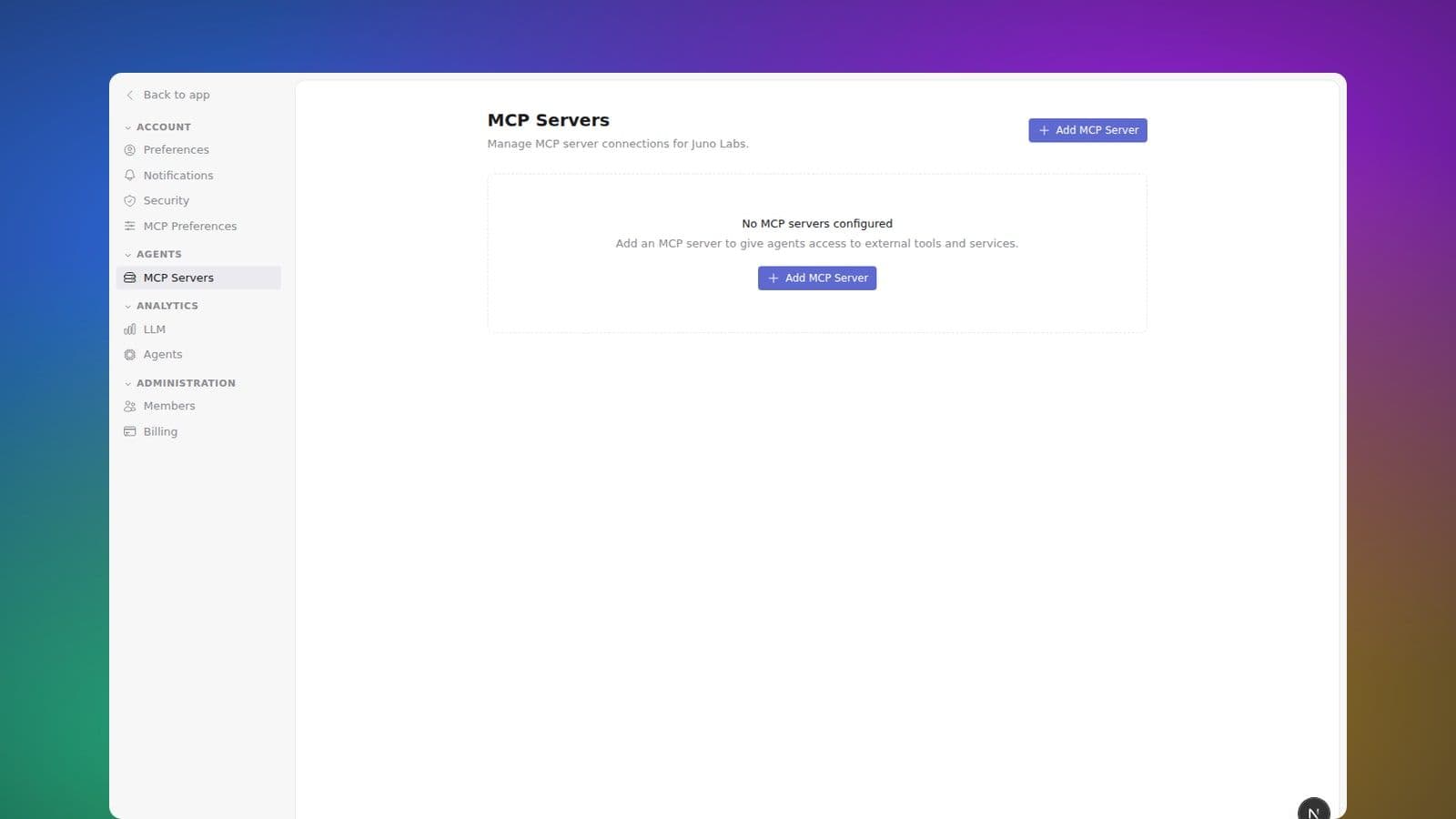
Monad connects to the rest of your stack in three ways: link previews that expand pasted URLs inline, MCP servers that give Monad's agents the ability to call out to your other tools, and MCP access from other AI apps like Claude and ChatGPT so they can read and write in Monad on your behalf.
Link previews
Paste any link into a message and Monad expands it into a rich preview that shows the title, description, site name, and a thumbnail. Previews are generated from the page's public metadata, so anything reachable on the open web works out of the box.
MCP servers
For everything else, Monad uses the Model Context Protocol (MCP). MCP is an open standard for connecting an AI assistant to external tools — queries against your analytics warehouse, opening tickets in a help desk, kicking off a deployment, anything an MCP server exposes.
A workspace admin adds servers under Settings → Monad → Connections. Each server has a URL, optional custom headers (used to pass API keys or auth tokens), and an enabled/disabled toggle. Once enabled, the server's tools become available to Monad workspace-wide.
Turning individual tools on and off
A single server often bundles tools you want alongside ones you don't — a read-only lookup next to a "delete everything" action. You don't have to choose between the whole server and nothing.
Open a server's detail page and click Test to list every tool it offers. Each tool has its own switch, on by default. Switch a tool off and agents stop seeing and calling it from their next run onward — the rest of the server keeps working. Switch it back on to restore it. (A task an agent is already in the middle of may finish using a tool it picked up before you switched it off.)
Tools you've turned off show up in a Disabled tools list on the page (with who turned each one off and when) even before you run a test, so you can review and undo them at a glance. Any new tool a server adds later starts on — turning tools off never hides anything you haven't chosen to hide.
If a server expects per-user credentials, each member can set their own under Settings → Account → Connection Preferences. Personal credentials override the workspace defaults whenever an agent acts on that user's behalf.
Connectors
Some popular services have a ready-made connector so you don't have to wire up a server yourself. Find them in the Connectors section on the Connections page (and under Connection Preferences). Each connector is a card with an Add button; clicking it opens the connector's own page, where you connect your own account once so your agents act as you in that service. Once it's set up, the card dims to an Added tile and the connection moves into your Connections list above — open it from there to manage or disconnect.
- Connecting X (Twitter) — read posts and, when you ask, post, reply, like, and follow.
- Connecting Gmail — search, read, draft, send, archive, and label mail.
- Connecting Google Calendar — read events, check availability, and schedule, update, or RSVP to events.
- Connecting Google Drive — search and read your files, and copy or create new ones.
- Connecting Notion — search and update your Notion workspace.
- Connecting Linear — find, create, and update Linear issues and projects.
Most connectors — Gmail, Google Calendar, Google Drive, Notion, and Linear — set up automatically: there's nothing to configure, you just click Connect and sign in. A few services still ask you to register your own OAuth client once; the connector's page walks you through it when that's the case, and an admin can set those up for the whole workspace — either so each member connects their own account, or with one shared account everyone's agents use (your personal setup always takes precedence).
Self-hosting operators can also build a connector with the public OAuth, credential, catalog, and agent-tool contracts. The repository includes a compile-checked HTTP connector example to use as a starting point.
Use Monad from another AI app
Monad also runs the other side of MCP — your workspace is itself an MCP server that apps like Claude and ChatGPT can connect to. Once connected, those apps can read your messages, search your workspace, edit your canvases, and post on your behalf, with the same permissions you have.
- Use Monad with Claude — Claude desktop and iOS.
- Use Monad with ChatGPT — the ChatGPT app.
- Personal API keys — for scripts and CLIs.
- Sessions, grants, and activity — see and revoke every credential tied to your account.