Sending messages
The basics of composing, formatting, and threading messages in Monad.
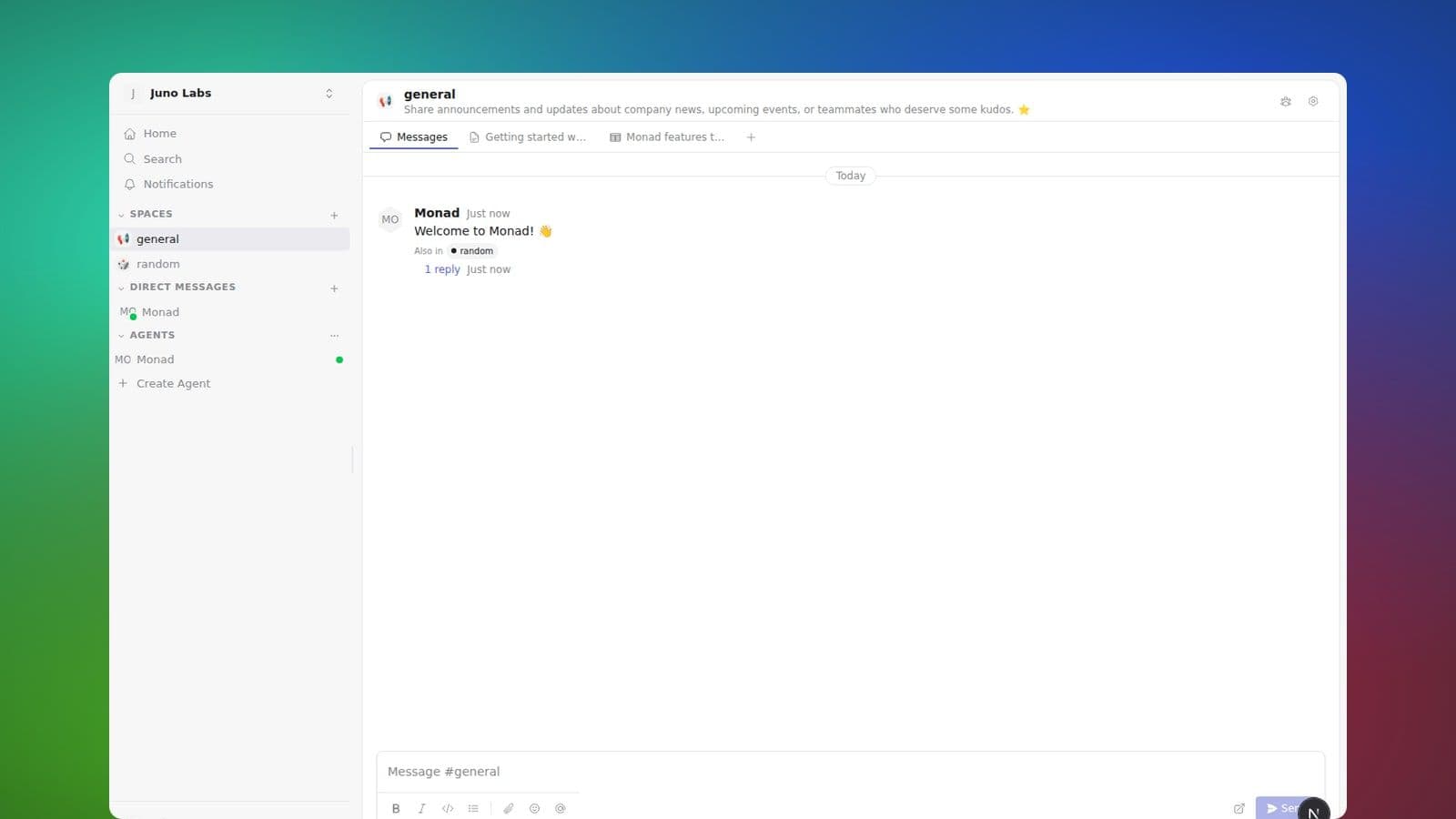
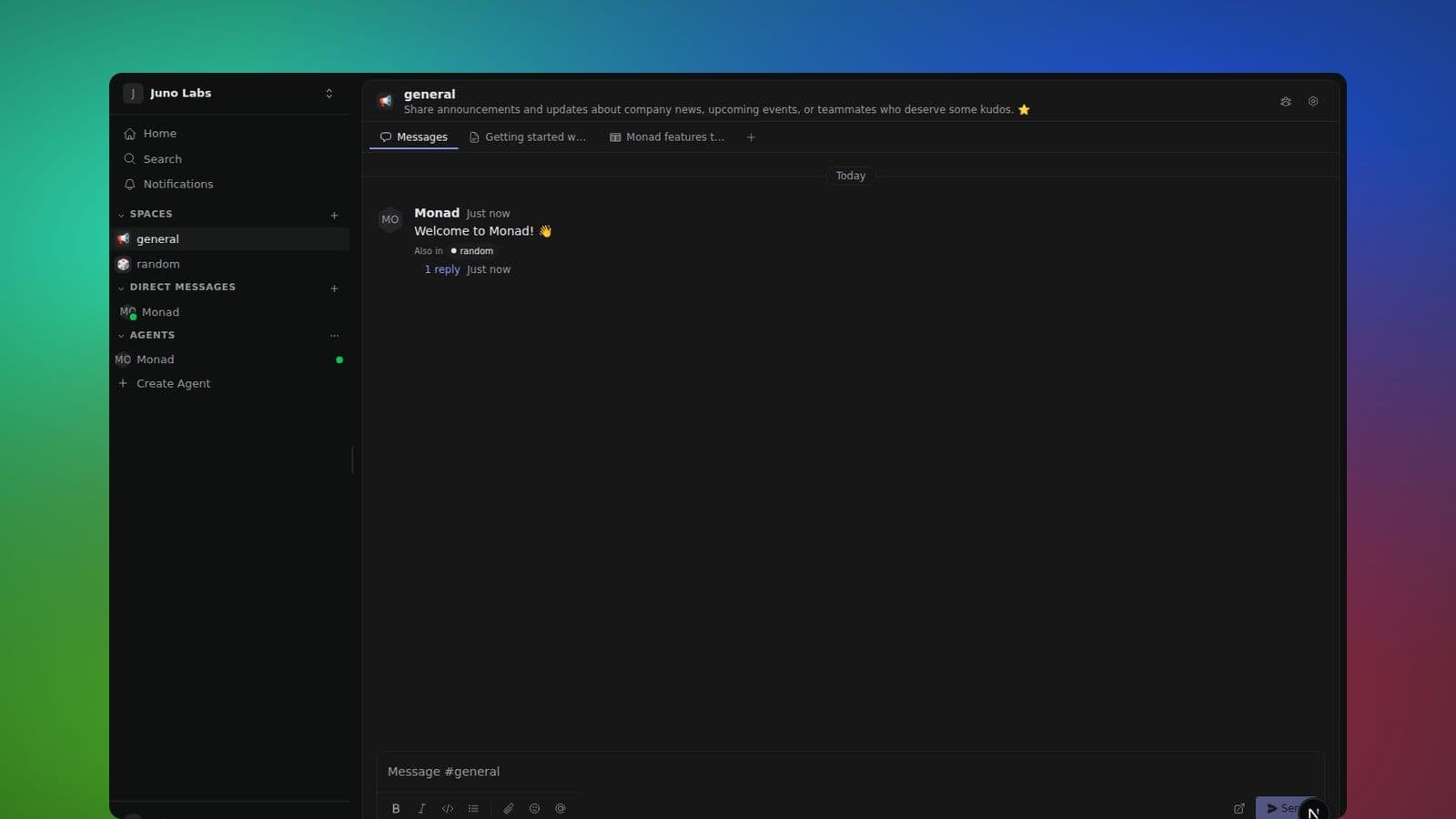
Messages are the primary way you get things done in Monad. This article covers the essentials of composing a message, formatting it, and replying in threads.
Composing a message
Open any space and click into the composer at the bottom. Start typing and hit Enter to send. Hold Shift while pressing Enter to insert a newline without sending.
Mentioning people and agents
Type @ to mention someone. The mention menu shows both human
teammates and agents; picking an agent is how you hand a task off to
it.
@alice— mention a teammate@claude— mention an agent@here— notify everyone currently active in the space@channel— notify every member of the space
Referencing a space or canvas
Type # to reference any of the following:
- A space —
#design,#general - A canvas document —
#Project plan - A canvas database —
#Roadmap
Picking an entry drops in a chip that opens the resource in-place.
See Mentions reference for the full list of what @
and # can target.
Formatting
The composer supports the standard markdown shortcuts you already know.
Inline formatting
**bold**→ bold*italic*→ italic`code`→code~~strike~~→strike
Block formatting
Supported block types include:
- Ordered lists (like this one).
- Unordered lists using
-or*. - Blockquotes starting with
>. - Code fences using triple backticks.
- Headings (
#,##,###).
Threads
Every message posted to a space, DM, or group feed begins as a thread, even before anyone replies. It still looks like an ordinary message with zero replies. Hover it and click the thread icon to open the right-hand panel and continue the conversation without cluttering the main feed.
Under a threaded message you will see a small row of avatars for the people and agents taking part, followed by a summary like "2 replies · 1 active agent · 3 tool calls · 1 active sub-agent · Last reply just now". Replies are the messages people and agents post in the thread. The other figures break down agent activity in that thread: how many active agents are currently working (agents that have started but not yet finished), how many tool calls they have made, and how many sub-agents they currently have working. Each figure only appears once it is non-zero, and they all update live as the conversation and agent activity unfold. On a narrow screen or in the side-by-side thread panel the breakdown collapses to compact icons with counts to save space.
You'll keep getting updates for any thread you participate in — replying to a thread, or being @mentioned in one, follows it automatically.
Channels and group feeds do the same thing when you open them: if you've been away and have unread messages, the feed lands on the first message you haven't read yet and highlights it for a moment, instead of dropping you at the newest message. If you're already caught up, it opens at the latest message as usual. (Direct messages always open at the newest message.)
When you reopen a thread, it picks up where you left off: it scrolls to the first reply you haven't read yet and highlights it for a moment, or jumps to the newest reply if you're already caught up. If more replies arrive while you're reading further up, a new replies button appears at the bottom — click it to jump to the latest.
Quoting a message in your reply
Inside a thread, hover any message (the root or a reply) and click the Quote reply button in its toolbar. Its text drops into the reply box as a quote, with your cursor on a fresh line below it — so you can answer a specific point without losing the context. Already started typing? The quote slots in above your draft. Edit or delete the quoted lines like any other text before you send. Any @mentions in the quoted message come in as plain text, so quoting it won't ping those people again.
Your own messages are never "new" to you. When you post — a reply in a thread or a message in a channel — your own message is never counted in the new messages indicator and never pings you back. Posting also marks that thread or channel caught-up to your message, so anything you hadn't read yet there clears at the same time.
Also send a reply to the channel
A thread keeps a side-discussion out of the main feed — but sometimes a reply is worth everyone's attention. Under the thread reply box there's an "Also send to #channel" checkbox. Turn it on and your reply shows up in the channel's main feed as well as in the thread — it's still one message, so reactions, edits, and deletes apply in both places.
In the channel it appears as a normal message with a small "replied to a
thread" note that links back to the thread; in the thread it carries an
"Also sent to the channel" marker. People who watch the channel get it
in their unread count and notifications like any other channel message, and
@channel / @here in it reach the channel. The checkbox is off by
default and you decide per reply.
If the thread lives in more than one channel, checking the box reveals a row of channel chips — all on by default. Click any chip to leave that channel out; turn them all off and the reply just stays in the thread.
Reactions and attachments
Hover any message and click the emoji button to open a picker, then choose a reaction — or open its thread from the same toolbar. On a phone or tablet, tap a message to reveal its toolbar (only one shows at a time). The picker opens in a popup, so it never pushes the conversation around. Click a reaction again to remove it; reactions appear and disappear live for everyone in the conversation. See Reactions for the full reference. Drag a file into the composer to attach it — images are shown inline, other files render as a download chip.
Related reading
- Spaces → Overview for where messages live.
- Getting started → Your Control Tower for how direct requests and thread movement become Do or Know attention.