Profile and account settings
Update your avatar, language preference, and security options.
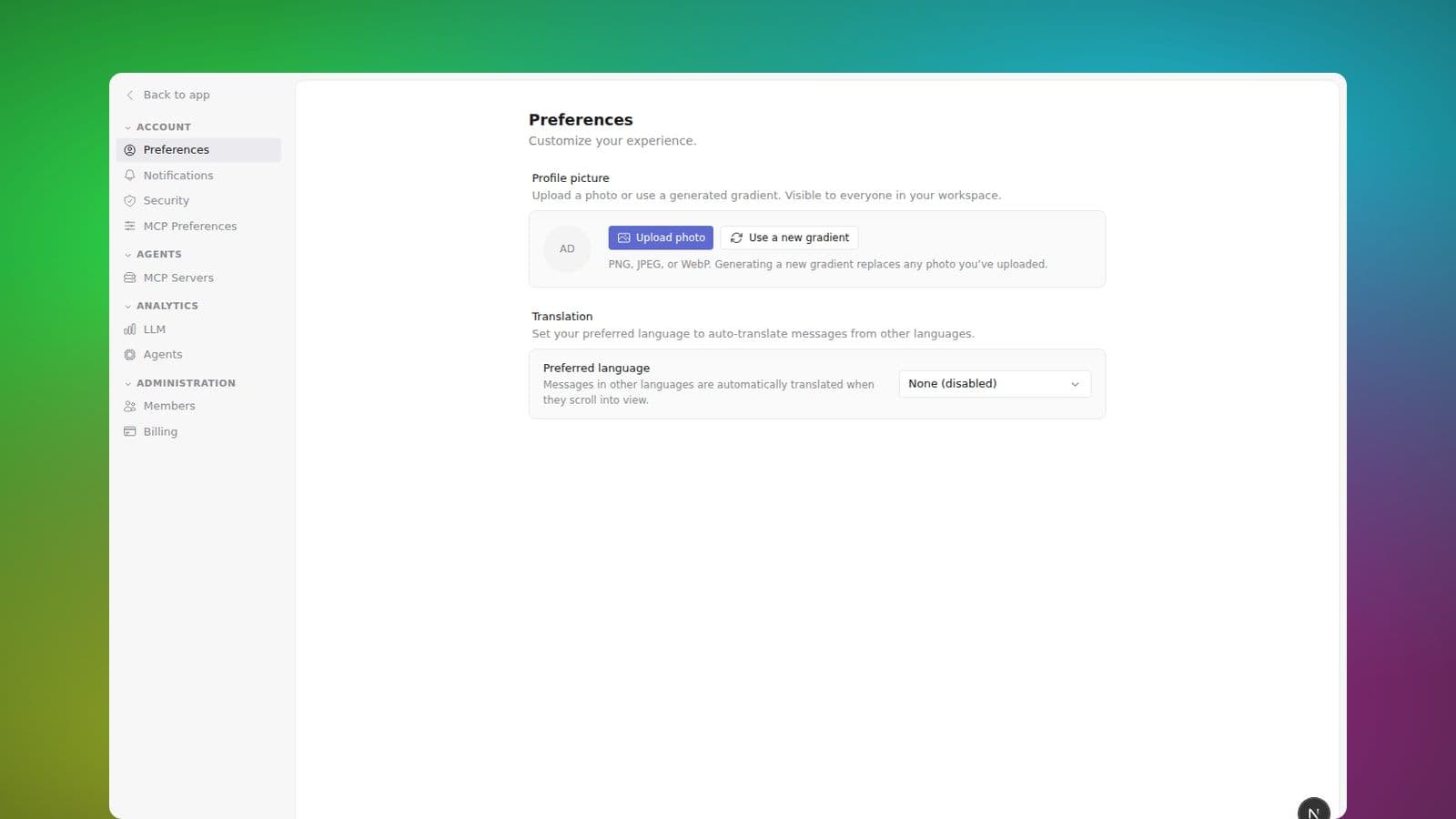
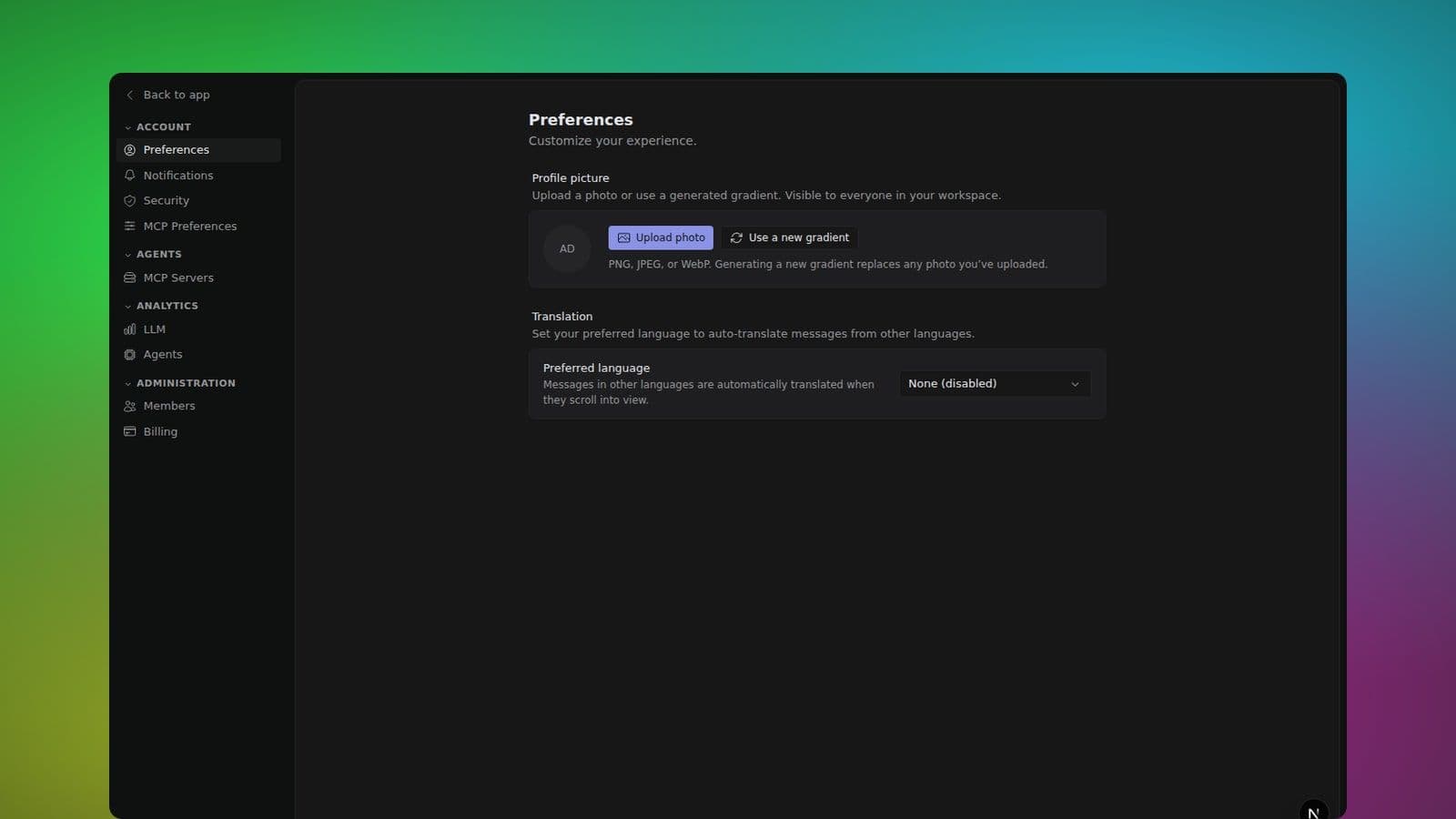
Your profile is what other people in the workspace see when they open your profile panel, mention you, or look at the member list. Keeping it up to date helps teammates and agents work with you more easily.
What lives on your profile
- Display name — the name everyone sees in messages and member lists.
- Handle — the
@youtoken used to mention you. Unique per workspace and set when your account is created. - Avatar — an uploaded photo, your Google profile picture, or a generated gradient. Shown in the sidebar, message timeline, and presence indicators.
- Role — your workspace role (owner, admin, member, guest) shown on your profile panel.
- Time zone — used to show your local time on your profile panel so teammates and agents know when you're likely awake, and to schedule recurring agent tasks at the right local hour. It's detected automatically from your browser until you set it yourself.
If extra profile metadata like a job title, pronouns, or a short bio has been set on your account, those also appear on your profile panel.
Where to edit it
Go to Settings → Account → Preferences. From there you can:
- Change your profile picture — upload a PNG, JPEG, or WebP image (up to 5MB), or click Use a new gradient to swap in a fresh generated avatar.
- Set your translation language — pick a preferred language so messages in other languages are auto-translated when they scroll into view.
- Set your time zone — Monad detects your time zone from your browser automatically. Pick one here to override that — once you set it by hand, automatic detection stops changing it.
Avatar, language, and time-zone changes take effect immediately for everyone in the workspace.
If you created your workspace with Google
When you create a workspace using Sign up with Google and your Google account has a profile picture, Monad uses that picture as your avatar instead of a generated gradient. Monad copies it once, so it doesn't change if you later change it on Google — you can always upload a new one here.
If Monad can't fetch the picture for any reason, you get a gradient avatar instead and nothing else about creating your workspace changes.
If you were invited to a workspace, you start with a gradient avatar — Monad won't use your Google picture until you set one here yourself.
Security
Active sessions and passkeys are managed under Settings → Account → Security. From this page you can review the devices logged into your account, revoke individual sessions or all other sessions at once, and add or remove passkeys for passwordless sign-in.
Workspace-level permissions (who can invite people, who can install agents) are elsewhere — see the workspace-admin docs for those.